> ## Documentation Index
> Fetch the complete documentation index at: https://testdocs.ecomelixir.com/llms.txt
> Use this file to discover all available pages before exploring further.
# Templates
> Install pre-built page designs from the Elixir dashboard
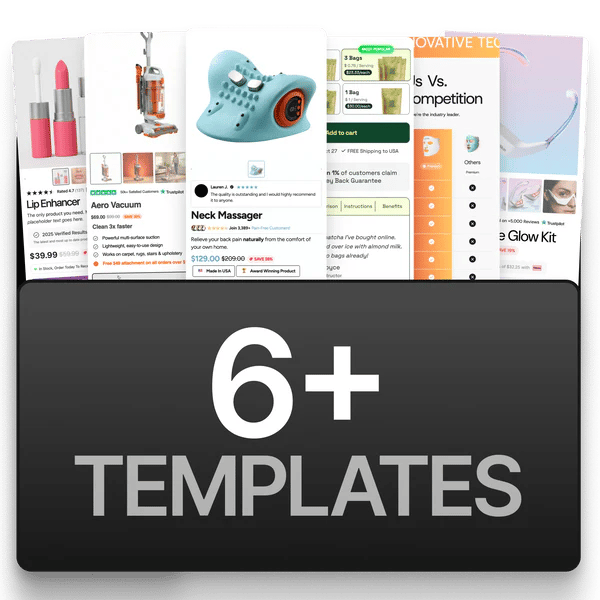 Templates are fully designed product page layouts you can install in one click. Instead of building from scratch, pick a template that fits your niche and customize it.
## How to install a template
1. Go to [app.ecomelixir.com/templates](https://app.ecomelixir.com/templates).
2. Browse the available templates.
3. Follow the on-screen instructions to install it on your store.
4. Open the page in the Shopify theme editor to customize.
If a template you're looking for isn't listed, it's still in development and will be released through the dashboard when ready.
## Built-in page templates
Your theme also includes these page types out of the box (select them when creating pages in Shopify admin under **Template**):
| Template | Use case |
| --------------- | ------------------------------------------------------------------------- |
| **Default** | Standard product, collection, blog, and cart pages |
| **Contact** | Pre-designed contact form layout |
| **Advertorial** | Long-form editorial-style landing pages ([guide →](/guides/advertorials)) |
| **Listicle** | Numbered list-style content pages ([guide →](/guides/advertorials)) |
Templates are fully designed product page layouts you can install in one click. Instead of building from scratch, pick a template that fits your niche and customize it.
## How to install a template
1. Go to [app.ecomelixir.com/templates](https://app.ecomelixir.com/templates).
2. Browse the available templates.
3. Follow the on-screen instructions to install it on your store.
4. Open the page in the Shopify theme editor to customize.
If a template you're looking for isn't listed, it's still in development and will be released through the dashboard when ready.
## Built-in page templates
Your theme also includes these page types out of the box (select them when creating pages in Shopify admin under **Template**):
| Template | Use case |
| --------------- | ------------------------------------------------------------------------- |
| **Default** | Standard product, collection, blog, and cart pages |
| **Contact** | Pre-designed contact form layout |
| **Advertorial** | Long-form editorial-style landing pages ([guide →](/guides/advertorials)) |
| **Listicle** | Numbered list-style content pages ([guide →](/guides/advertorials)) |