
License transfer requests are typically reviewed within 12–24 hours.
Before You Begin
Please ensure that:- You have access to the email used to purchase the license.
- You know the destination store’s Shopify URL.
- The new store URL uses the default Shopify domain ending in .myshopify.com.
Step 1: Open the Licenses Page
Log in to the Elixir dashboard using the email associated with your purchase. Navigate to the Licenses page.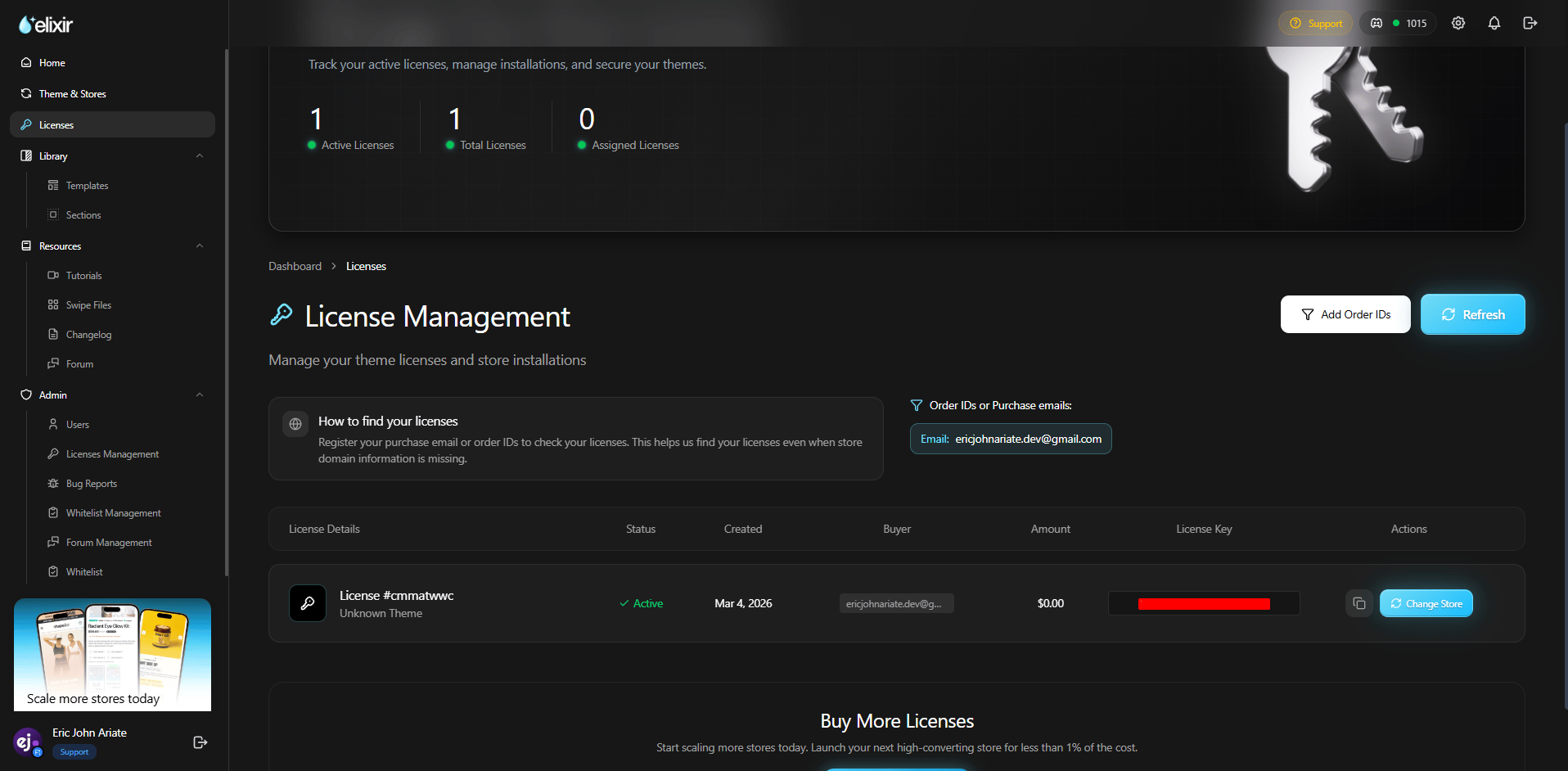
Step 2: Select the License
Locate the license you would like to transfer. Click the Actions button and select Change Store.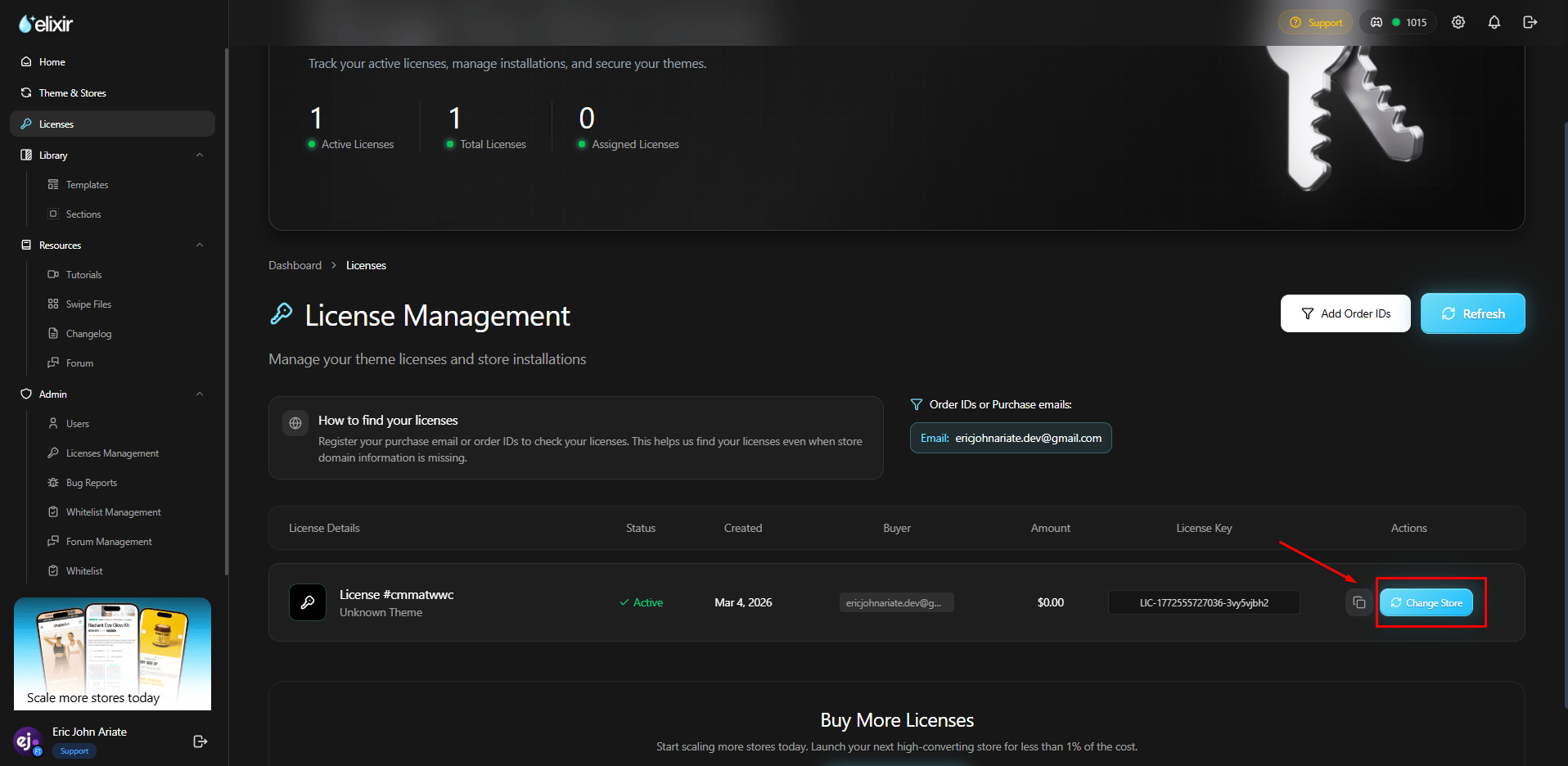
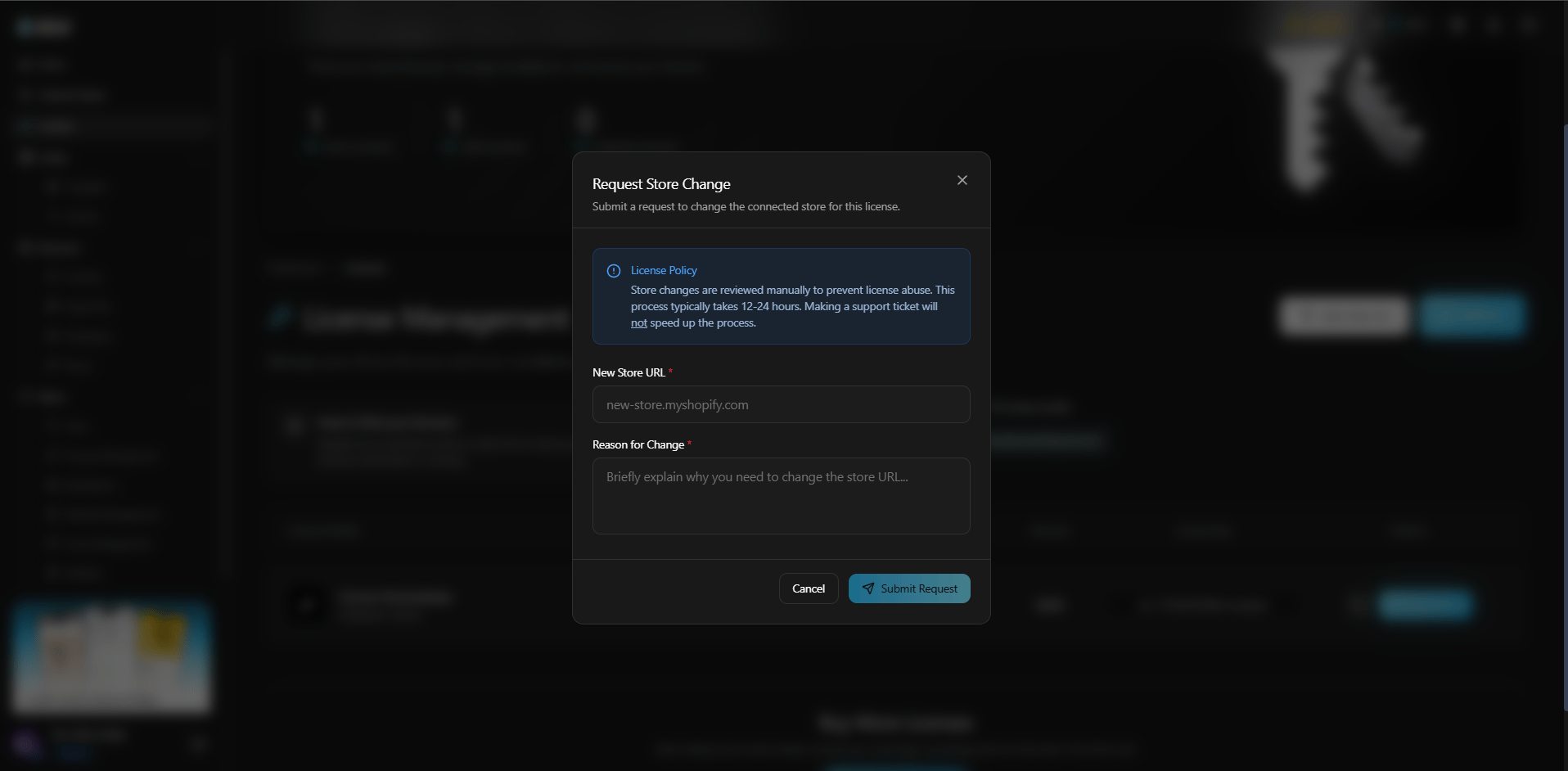
Step 3: Submit the Transfer Request
Complete the required fields:New Store URL
Enter the destination store’s default Shopify URL. Example: your-new-store.myshopify.comReason for Change
Provide a brief explanation for the transfer request. Common examples:- Moving from a development store to a live store
- Rebranding to a new Shopify store
- Migrating to a replacement store
Step 4: Wait for Approval
Once submitted, your transfer request will be reviewed by our team. Most requests are processed within 12–24 hours.Need It Processed Faster?
If your transfer is time-sensitive, please contact support after submitting your request. When contacting support, include:- Your order number
- The current store URL
- The destination store URL
Frequently Asked Questions
Can I transfer a license multiple times?
Can I transfer a license multiple times?
License transfers are reviewed on a case-by-case basis. Frequent transfer requests may require additional verification.
Can I use my license on both stores at the same time?
Can I use my license on both stores at the same time?
No. A license can only be assigned to one Shopify store at a time.
Why was my transfer request not approved?
Why was my transfer request not approved?
Common reasons include:
- Invalid store URL
- Missing information
- Ownership verification issues