
Before making changes, always verify whether the issue occurs on another Shopify theme. This helps determine whether the issue is theme-related or store-related.
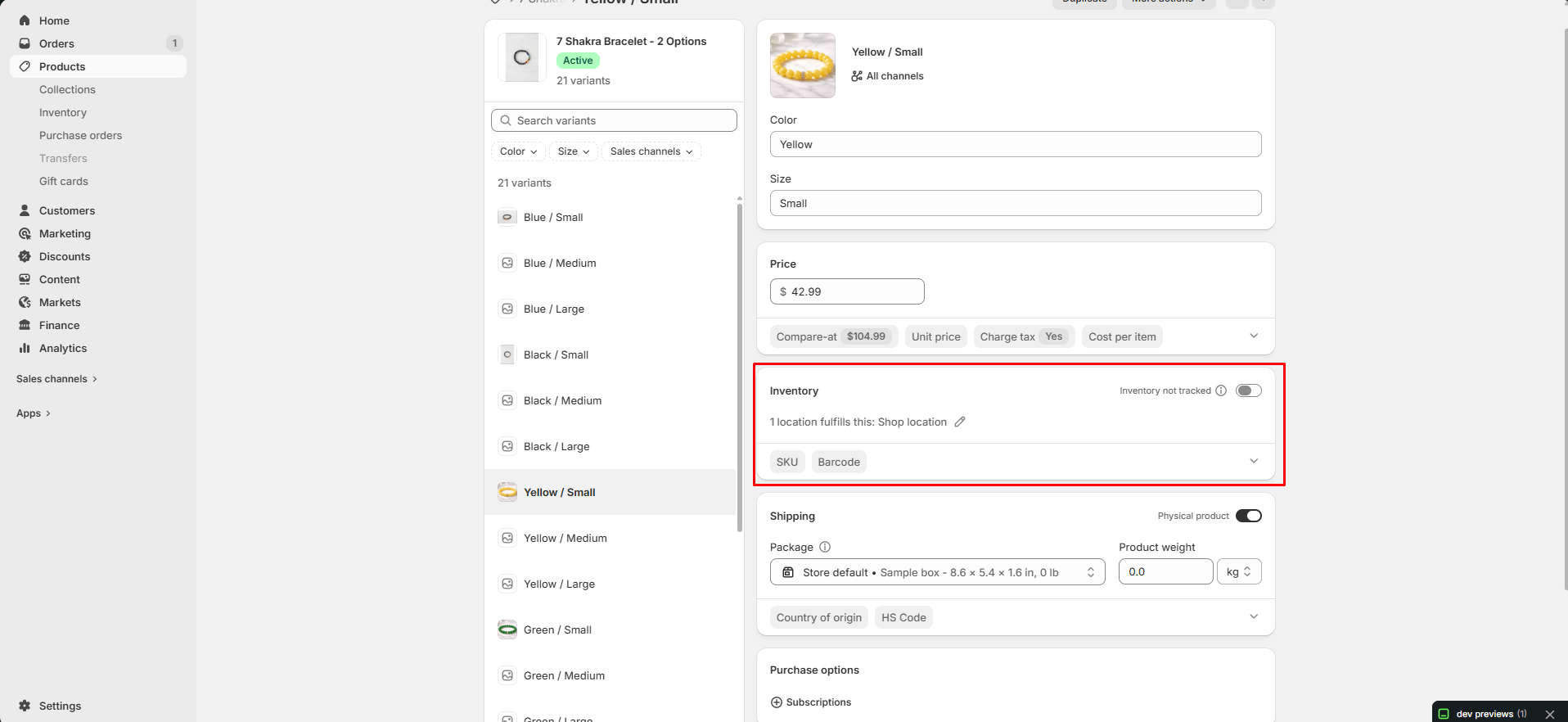
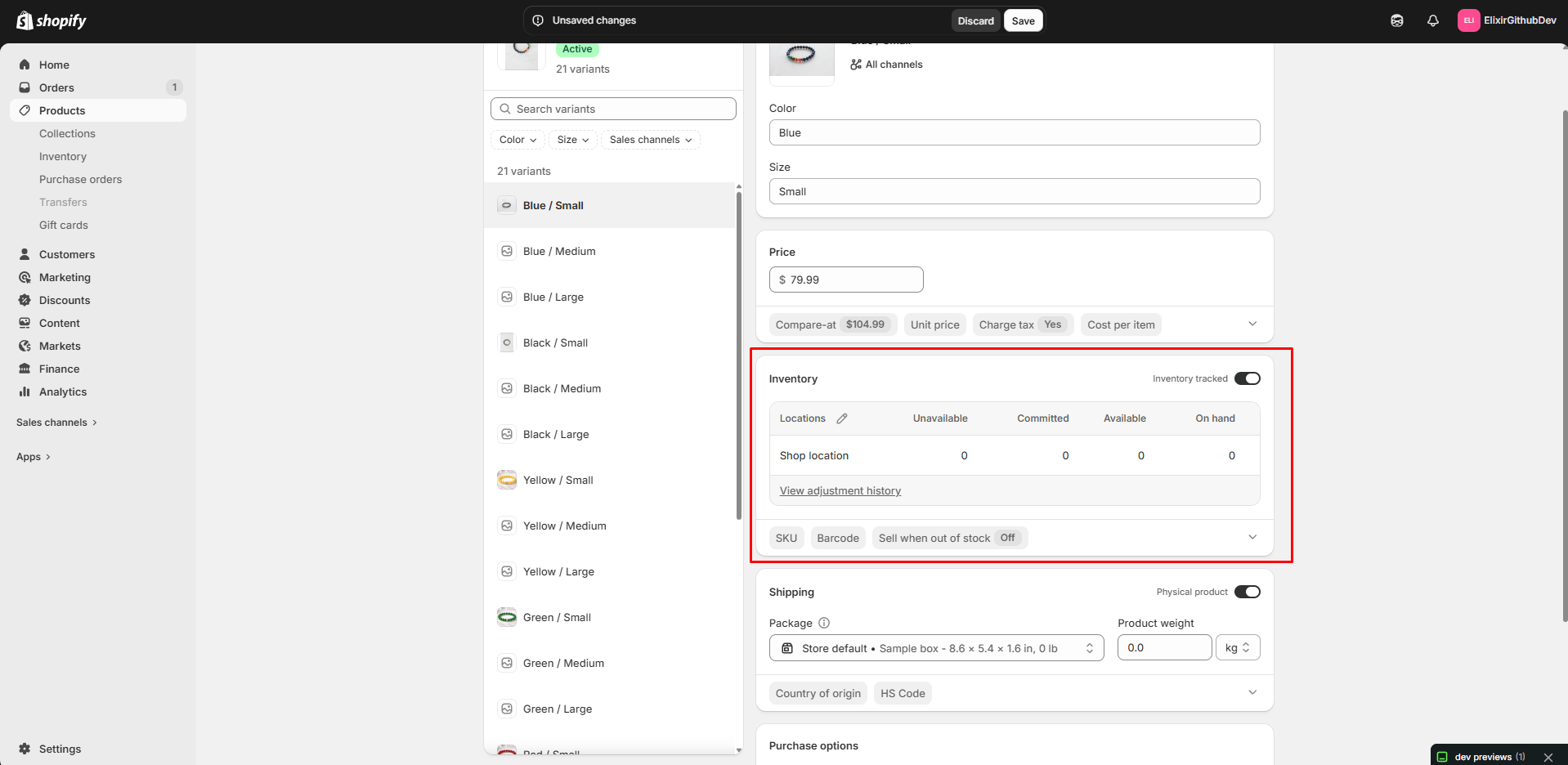
Step 1: Check Product Inventory
The most common cause is insufficient inventory.How to Check
- Go to Products
- Open the affected product
- Review inventory levels for each variant
- Inventory quantity is greater than zero
- The correct variant has stock available
- Inventory is assigned to the correct location
Step 2: Verify Shipping Settings
For physical products, Shopify may prevent purchases if shipping settings are incomplete.Check Product Settings
- Open the product
- Verify that This is a physical product is enabled when applicable
- Confirm weight information is entered correctly
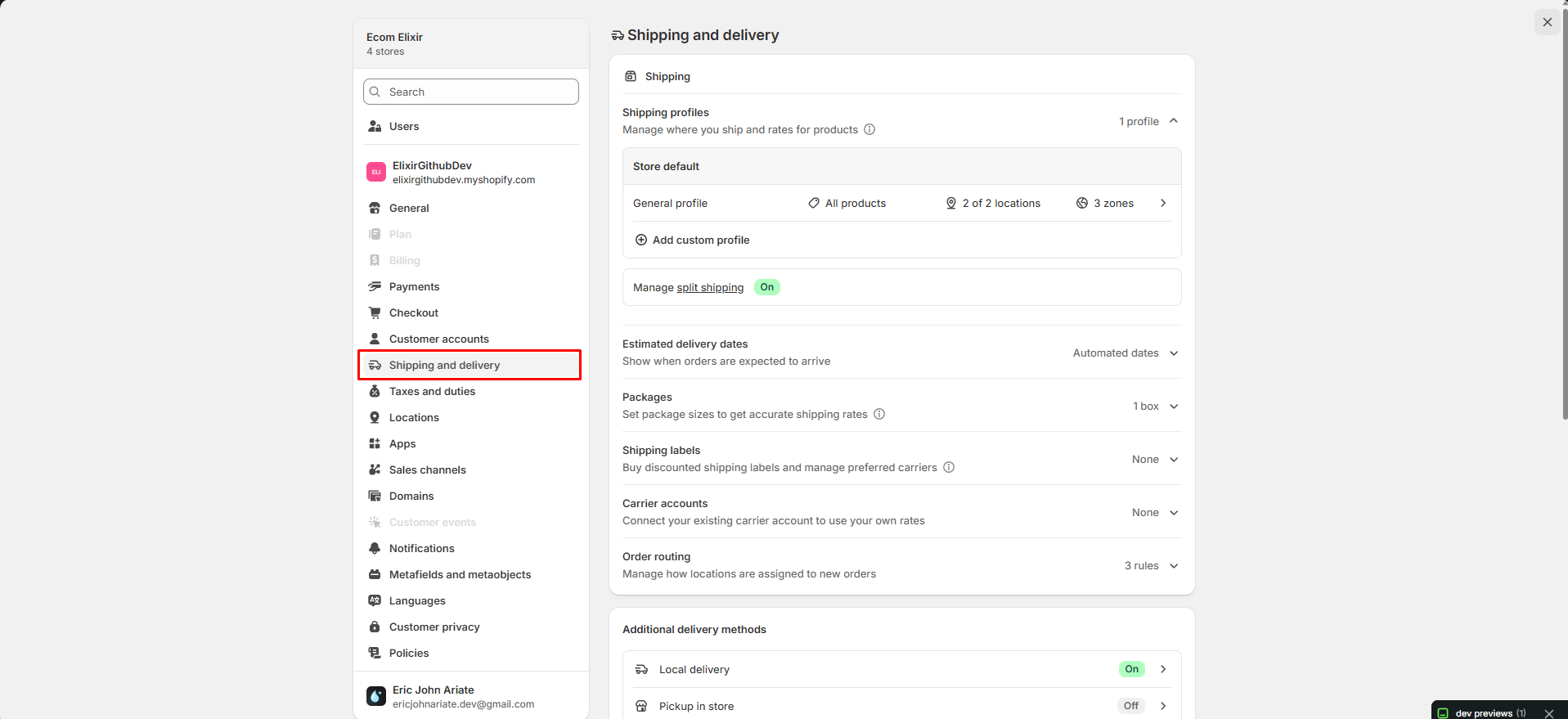
Check Shipping Rates
- Navigate to Settings → Shipping and Delivery
- Verify shipping rates exist for the customer’s region
Step 3: Check Shopify Markets
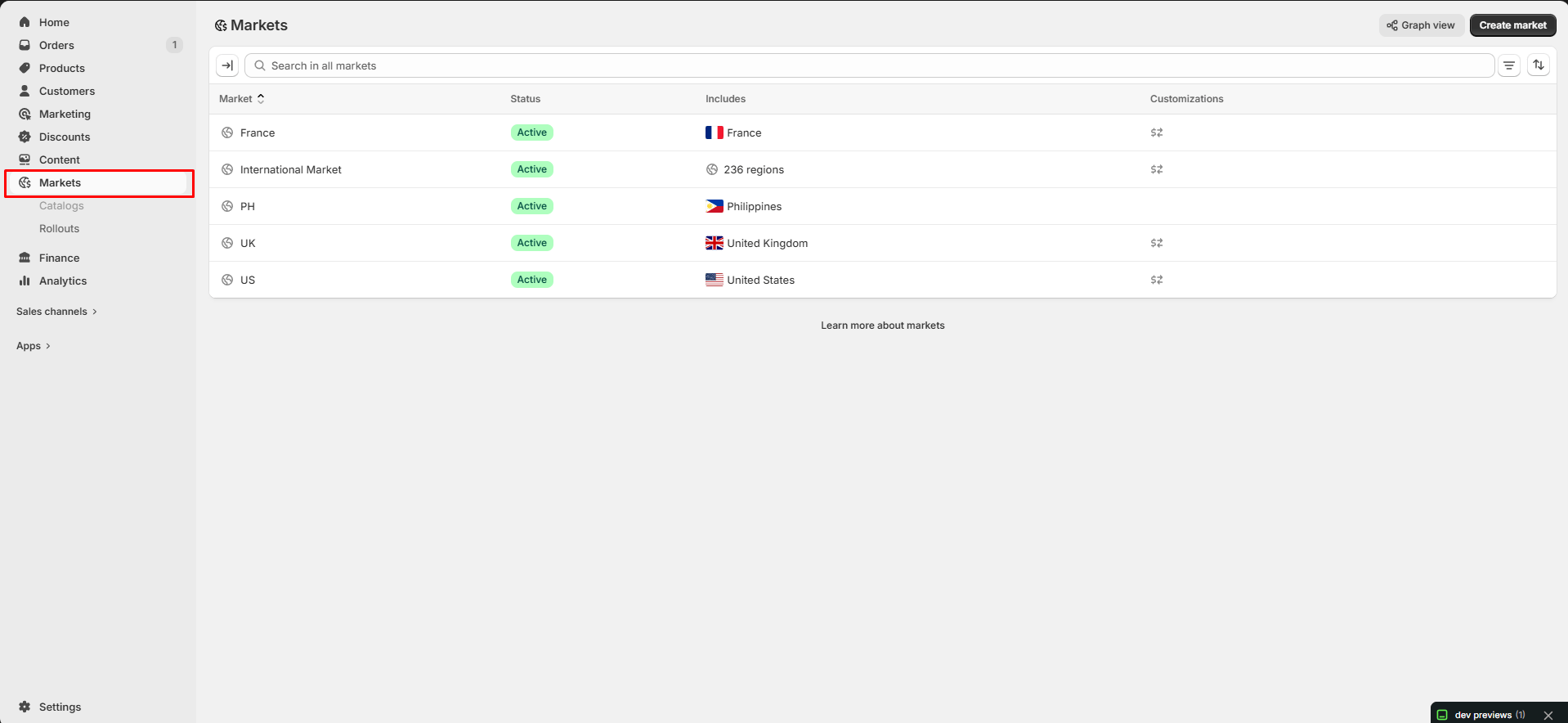
Shopify Markets can affect product availability.How to Check
- Go to Settings → Markets
- Open the market relevant to your customer
- Verify that the product is available in that market
- Product unavailable in specific countries
- Market restrictions preventing purchases
- Catalog exclusions
Step 4: Check Product Variants
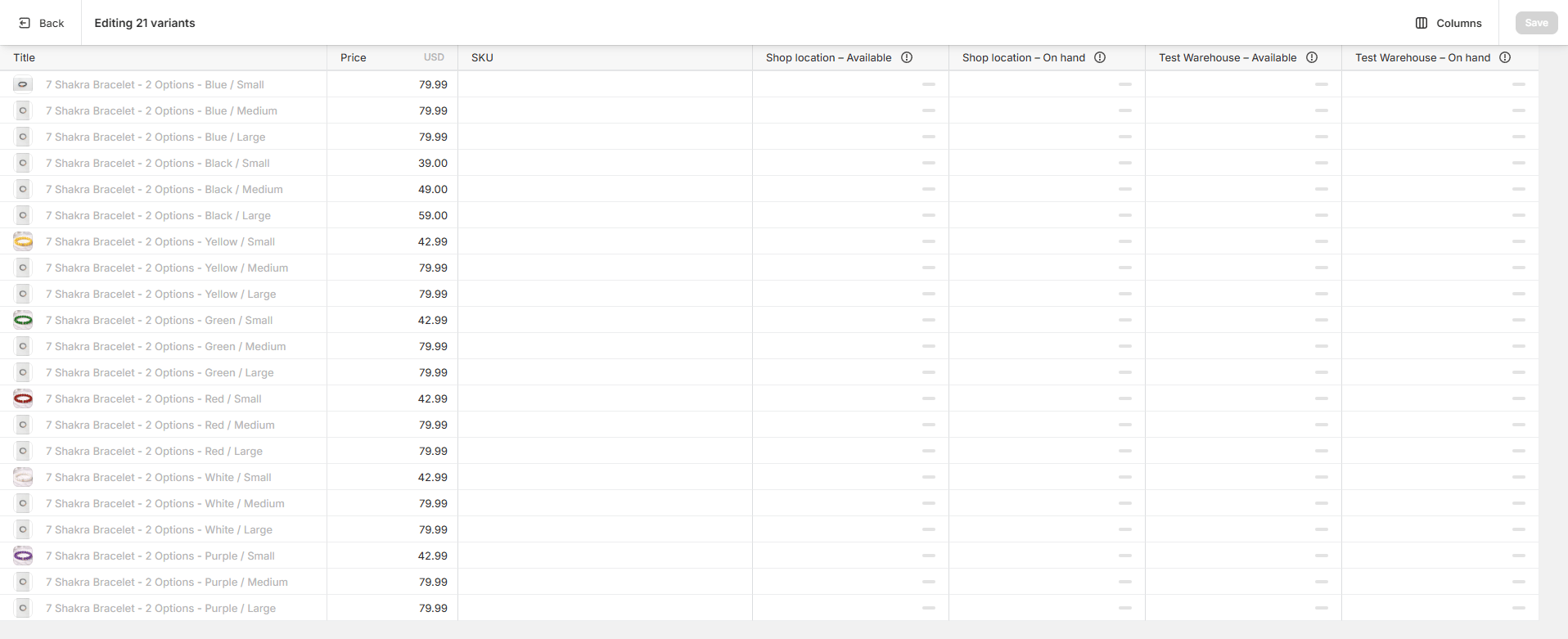
Sometimes the product itself has inventory, but individual variants do not. Example:
If a customer selects a variant with no inventory, Shopify will show the product as unavailable.
Review all variants individually.
Step 5: Review Inventory Locations
If you use multiple fulfillment locations, inventory may be assigned incorrectly. Verify:- Inventory exists at an active location
- The location can fulfill online orders
- Inventory quantities are synced correctly
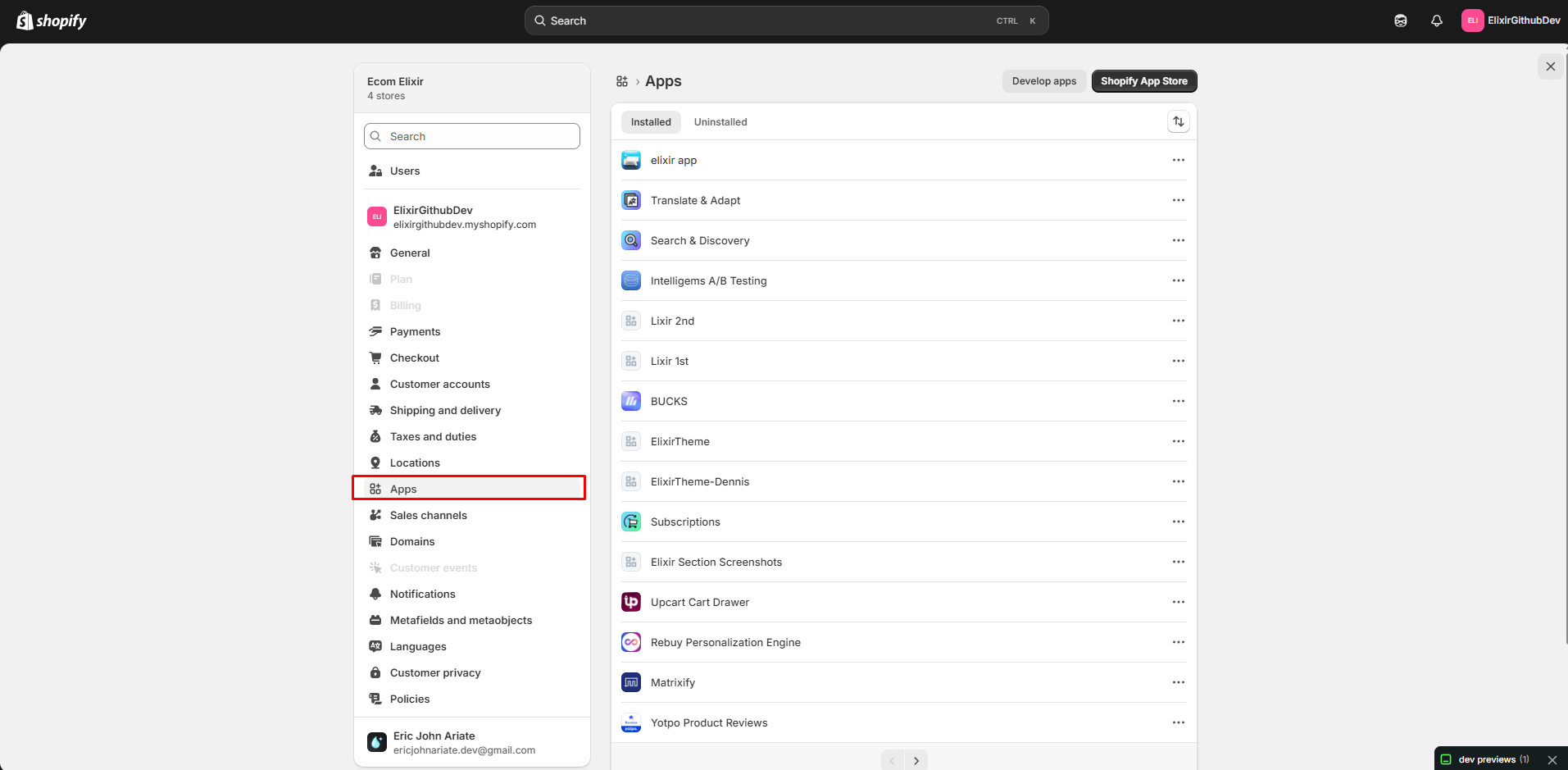
Step 6: Check Selling Plan and Subscription Apps
Subscription and selling plan apps can affect product availability. If you’ve recently installed:- Subscription apps
- Bundle apps
- Inventory apps
- Product option apps
Step 7: Check Purchase Restrictions
Some apps can intentionally restrict purchases based on:- Customer location
- Customer tags
- Subscription requirements
- Minimum order quantities
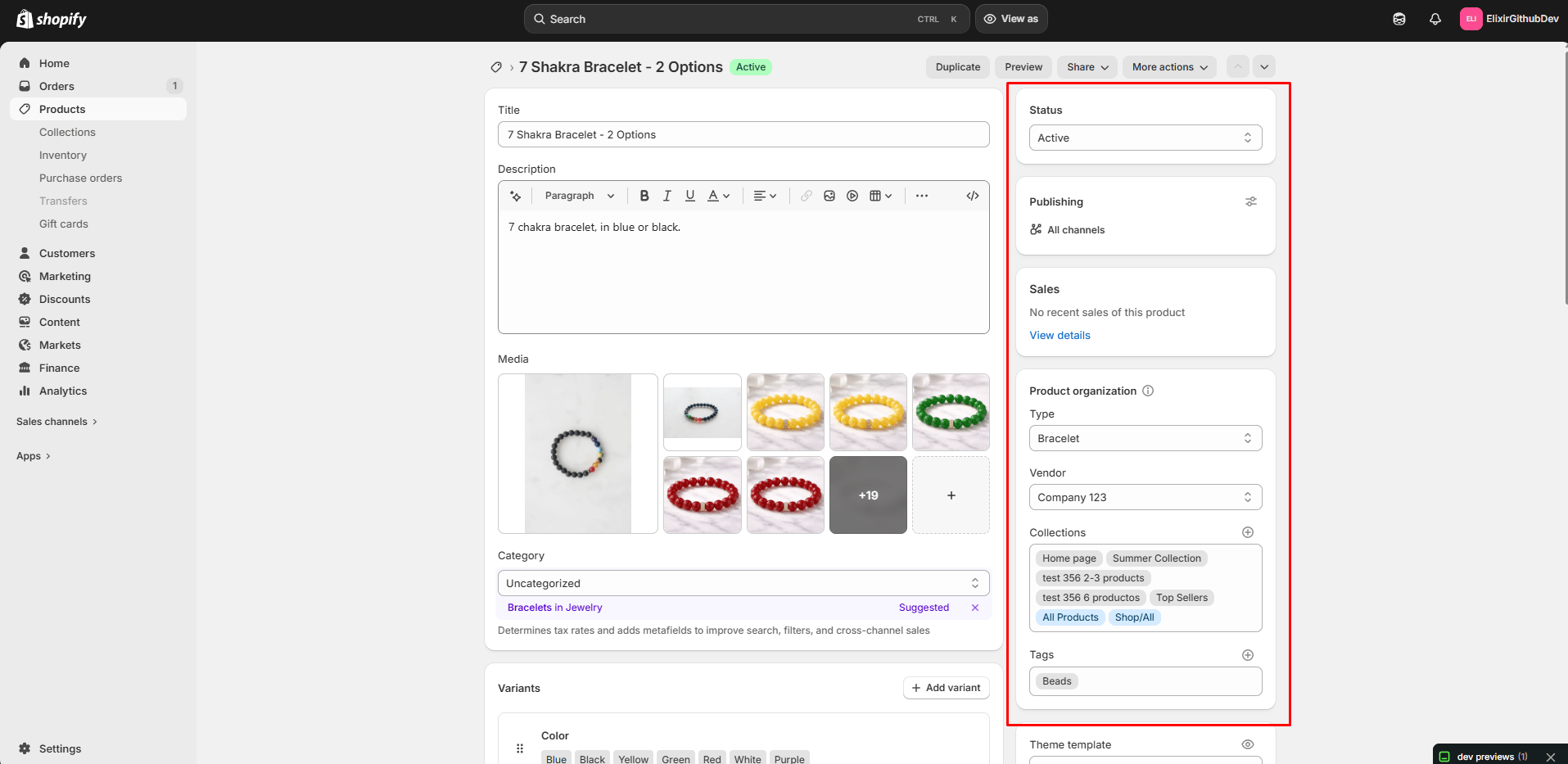
Step 8: Verify Product Status
Confirm the product is:- Active
- Available on the Online Store sales channel
- Published correctly
Step 9: Test the Product on Another Theme
The fastest way to identify the source of the issue is to test the product on another Shopify theme.How to Test
- Open Online Store → Themes
- Install or use an existing Shopify free theme (such as Dawn)
- Preview the theme
- Navigate to the affected product page
Results
If the product is also sold out on another theme: The issue is likely caused by Shopify settings, inventory, markets, or app configurations. If the product is only sold out on Elixir: Review any customizations made to the product template and contact support if needed.
Product Works on Live Store but Not in Theme Editor
You may notice that products cannot be added to the cart while using the Shopify Theme Editor. In some situations, Shopify’s Theme Editor preview can trigger errors such as:How to Verify
- Save your changes
- Open the theme preview in a separate browser tab
- Test the product outside the Theme Editor
Always test product functionality in the theme preview or live storefront before assuming there is an issue with the theme.
Still Seeing Sold Out?
If you’ve completed all steps above and the product still appears unavailable, please contact support and include:- Product URL
- Product handle
- Product inventory screenshots
- Shopify Markets screenshots
- Shipping settings screenshots
- Any installed inventory, bundle, or subscription apps